macOS Big Sur on Unsupported Macs: Historical Guide
Historical guide: macOS Big Sur is an older macOS release. The screenshots below document an unsupported-hardware workaround and are not a current installation procedure. Use Apple guidance to identify a compatible macOS for your exact Mac model. For a related workflow, see AI.
- Part 1. Which Devices Supported macOS Big Sur
- Part 2. Historical Unsupported-Mac Workaround
- Part 3. Browser-Based Prototyping and Compatibility
Which Devices Supported macOS Big Sur
Apple has maintained a tradition of providing software updates and support for its gadgets. Do you own a MacBook, MacBook Pro, MacBook Air, Mac mini, iMac or Mac Pro, and are wondering "can I install macOS 11 on older Mac?" Your worries are valid since not all Macs can support macOS 11 officially.
Check the exact model identifier against Apple's archived Big Sur compatibility list. The summary below describes some historical model families; it is not a promise of ongoing updates, and later Mac models are not automatically compatible with Big Sur.
- iMac models listed by Apple, starting with Mid 2014
- iMac Pro (2017)
- Mac mini models listed by Apple, starting with Late 2014
- Mac Pro (Late 2013) and Mac Pro (2019)
- MacBook (Retina, 12-inch) models from Early 2015, Early 2016, and 2017
- MacBook Pro models listed by Apple, starting with Late 2013; MacBook Air models listed by Apple, starting with Mid 2013
Compatibility is model-specific. A Mac that can run an earlier macOS release is not necessarily compatible with Big Sur.
Identify the exact model and year before choosing an installer. Do not infer Big Sur compatibility from the year alone or from compatibility with High Sierra, Mojave, or Catalina.
Use the compatibility documentation for the particular macOS release. An unofficial workaround does not change the model support listed by Apple.
If you are still unsure whether your Mac is supported, you may question "why I cannot install macOS 11?" Use the following list of unsupported Macs.
- 2012 Mac mini 2012
- iMac 2012, 2013 iMac
- MacBook Air 2012
- MacBook Pro 2012, Early 2013 MacBook Pro
Historical Unsupported-Mac Workaround
This historical workaround used unofficial installation components and changes to macOS security protections. It does not establish compatibility with your hardware or installer. For an installation you can maintain, identify a macOS version supported on the exact Mac model.
Before any operating-system change, make and verify a backup and identify a recovery path for the exact Mac model. A backup alone does not establish that an unsupported installation is compatible or secure.
Review your backup and recovery readiness before deciding whether any system change is appropriate:
- Check the backup method available in the installed version of macOS.
- Confirm which files and volumes the backup includes.
- Keep a separate copy of important files on suitable backup storage.
- Verify that the backup has completed and that needed files can be recovered.
- Identify the supported recovery or reinstallation method before changing the system.
For a current installation or reinstallation, start with Apple's macOS download and installation guide. The screenshots below are historical references, not a sequence to execute.
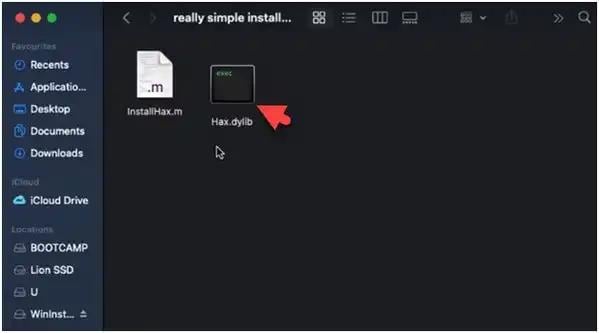
Historical screenshot 1: Installation downloads used in the earlier workaround. Obtain an installer from Apple for a compatible Mac; do not rely on the old package names or download screen shown here.
- Find compatible installers through Apple's macOS download and installation guide.
- The old third-party installer workaround is not verified or recommended by this guide.
Historical download screen:
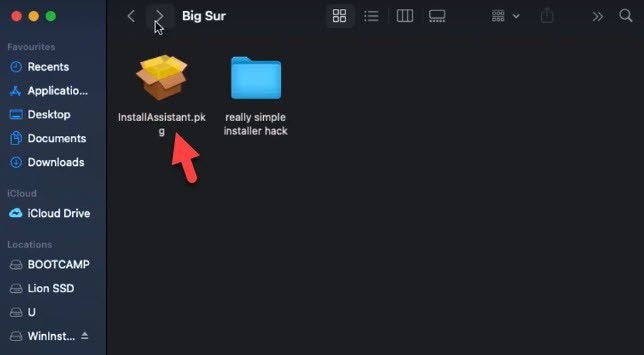
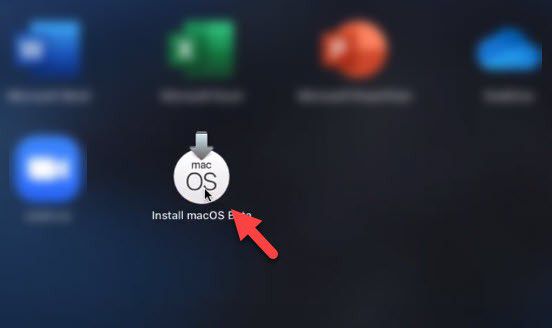
Historical screenshot 2: The old installer package. Its presence does not verify compatibility, origin, or suitability for a current installation.
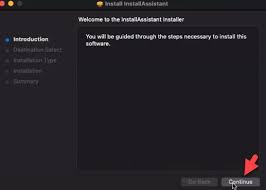
Historical screenshot 3: An installer introduction screen. Follow the instructions for your supported installer, not this archived sequence.
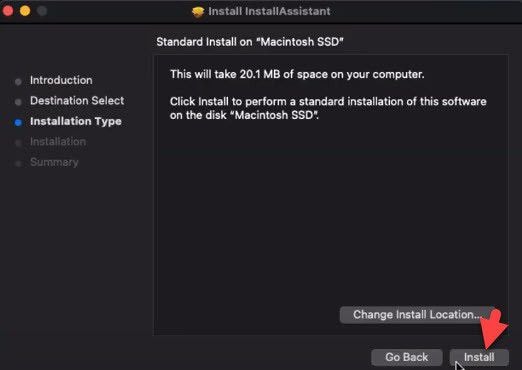
Historical screenshot 4: An installation prompt from the earlier workaround. Check the storage requirements for the macOS version and installer you intend to use.
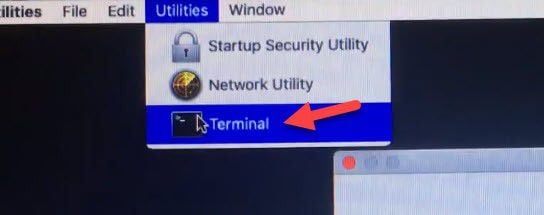
Historical screenshot 5: Recovery and Terminal in the earlier workaround. System Integrity Protection helps protect system files from unauthorized changes; see Apple's explanation of System Integrity Protection. Do not use this archived screen as a prompt to disable it.
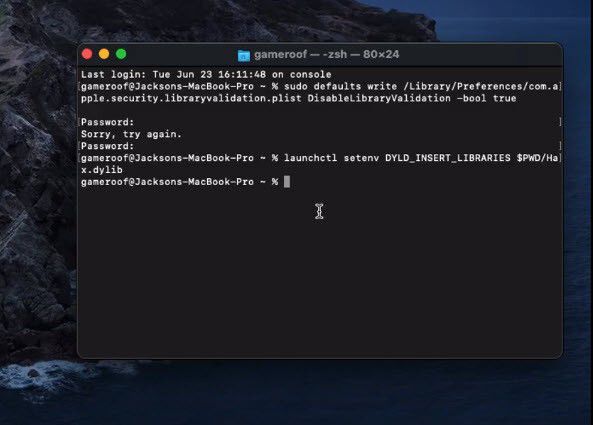
Historical screenshot 6: Terminal changes used by the earlier workaround. They involved library validation and loading additional code into the installer environment.
Changing library validation affects which code a process can load. This historical screenshot is not a supported installation requirement.
Use administrator credentials only after verifying the source and purpose of an installer.
Use the supported installer for the selected macOS release instead of copying commands from the archived Terminal screen.
Historical screenshot 7: The old installer completion stage. It does not demonstrate that the system is supported or suitable for ongoing use.
A desktop appearing after installation does not verify hardware compatibility, reliable updates, or application support. Use the supported compatibility and recovery guidance for the exact Mac model.
Browser-Based Prototyping and Compatibility
Mockitt is a browser-based prototyping tool. It is not a reason to bypass operating-system protections, and this article does not verify current Mockitt compatibility with Big Sur. Check the current browser and product requirements before using an older system.
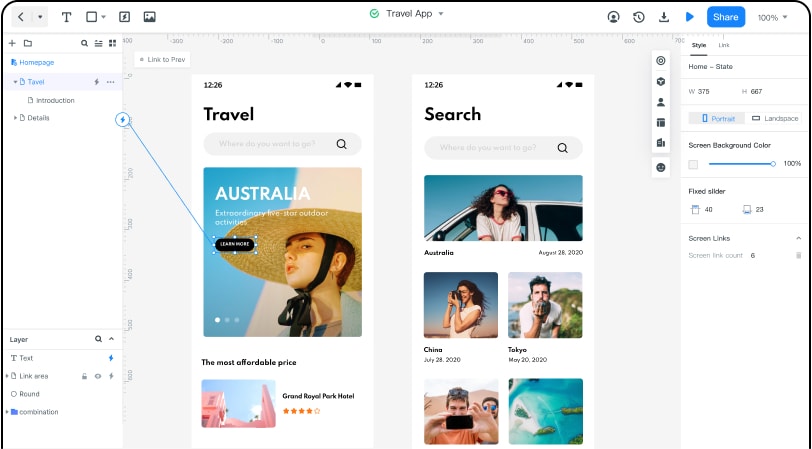
- Prototyping - Use screens and interactions to explain a proposed application flow; learning and review are still required.
- Animation - You can easy polish the final product to create a life-like prototype if you take advantage of the many transitions and interactive gestures. Additionally, animated elements are customizable from the interactive page, since you can hide, resize, color and change position.
- Collaboration - Share a prototype for team review and check the available permissions before sharing. Specific collaboration features depend on the current product and plan.
- Handoff - Use design and interaction information to discuss implementation with developers. Available export and handoff options depend on the current product and plan; an exported prototype is not a finished application.