Guide:Collaborate on Mockitt
Mockitt supports a co-editing feature that allows multiple members to make changes in the project at a time. All editings will be upgraded in real-time immediately. For a related workflow, see online prototyping tool.
Share Image
Members can share image material through the Resource Library. To do this, click the Image icon from either the top or the right-side menu.
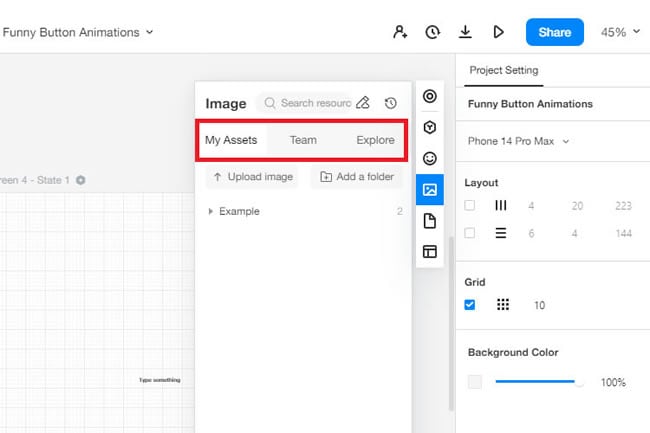
You can use the team section from this section to upload and retrieve project images.
Add Comments
Step 1: Go to the Mockitt application and log into your Mockitt account. Now, open the project file that requires revisions.
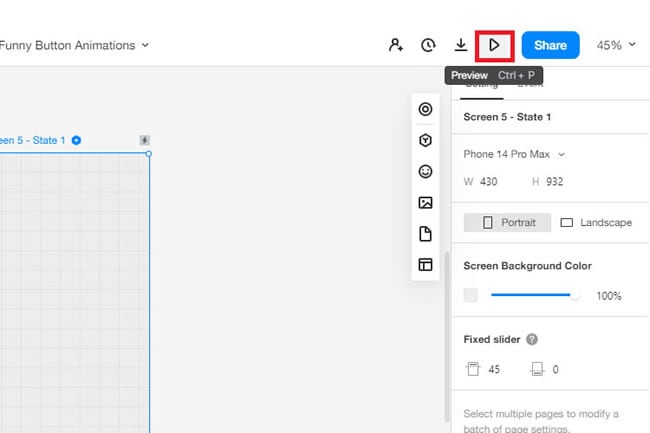
Step 2: Next, click the Preview button from the top right menu on the project panel to add comments to this file.
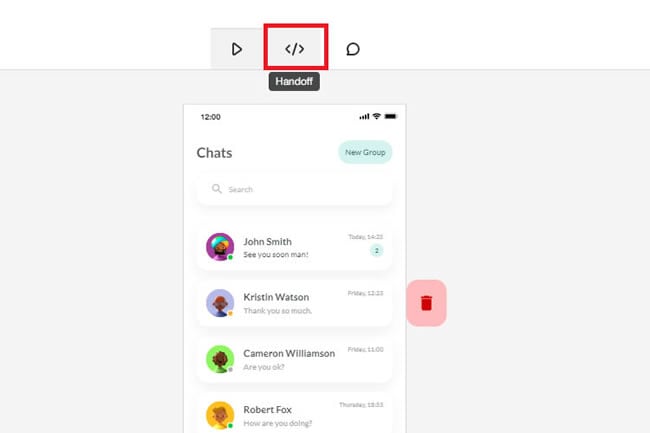
Step 3: After you are under the preview, click HandsOff from the top menu to enter the Mark Mode.
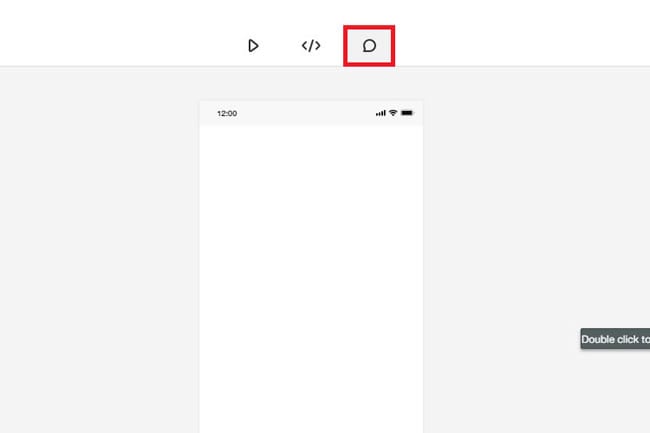
Step 4: Now, click the Comment option on the top menu and add a note on the bottom right corner of the information panel. This will be visible to all team members (having access to the folder).